
How to add a timestamp to photos you already took on iPhone
Your iPhone saved the date each photo was taken, so you can print that date on old photos without guessing. For one photo, type it with Markup. For many, use a Shortcut or Geoplate's Old photos, which stamps a whole batch with each photo's own date and place and keeps your originals.
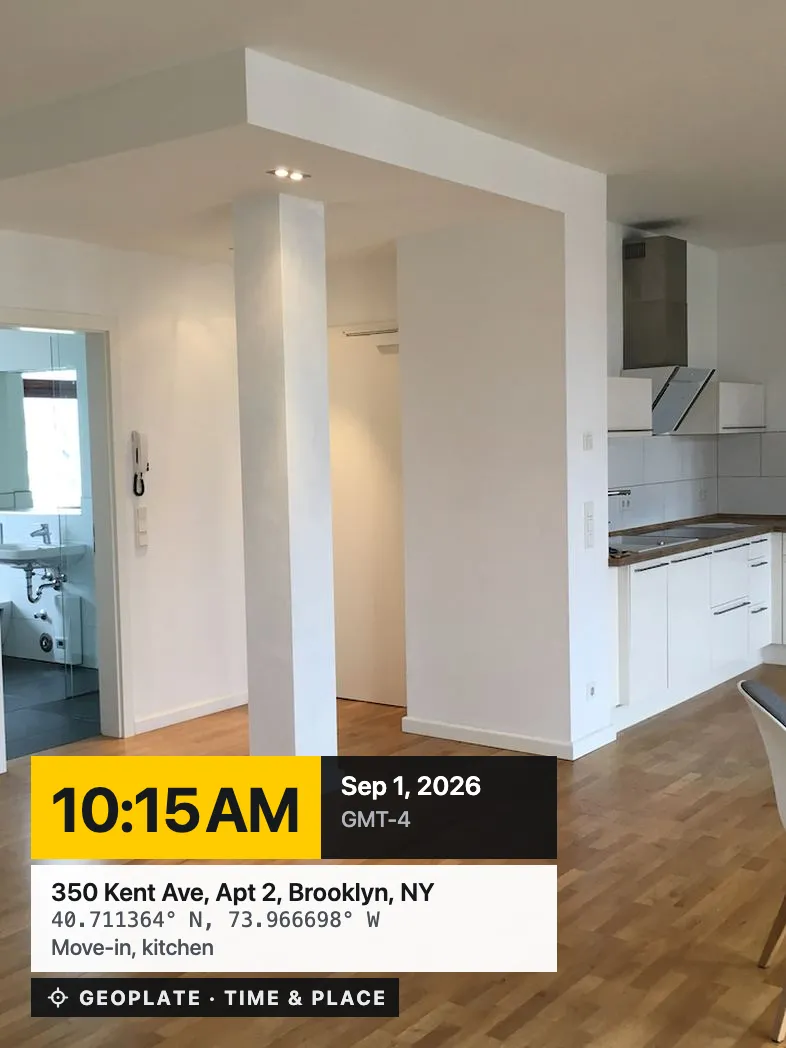
First, check the date your iPhone saved
Open a photo in Photos and swipe up. The date and time at the top are when it was taken, and the map below shows the place if location was on. That's what a Shortcut or Old photos starts from.
Check a few photos before you stamp a batch. Screenshots, pictures saved from chat apps and scans of paper prints often carry the day they landed on your phone. If a date is wrong, tap Adjust next to it in the info panel and fix it first.
One photo: Markup
Open the photo, tap Edit, then the Markup button and the plus button, and choose Text. Type the date you saw in the info panel and drag it into a corner. It's free and fine for a photo or two. The date is typed by hand, so it's only as right as your typing, and there's no place unless you type that too.
A free batch: Shortcuts
The same chain as in our guide to timestamping iPhone photos works here: Select Photos, Repeat with Each, Get Details of Images (Date Taken), Format Date, Overlay Text, Save to Photo Album. It reads each photo's own date and saves stamped copies. The stamp is plain text in one style, and an address needs more actions.
A batch with date and place: Geoplate Old photos
Old photos in Geoplate is made for exactly this job. The batch uses the stamp you have on the camera, so pick a template first.
- On the camera screen, tap Old photos and pick as many photos as you need. Photos stored in iCloud download first.
- Swipe through the batch. A badge on each photo says whether its date and place came from the file or were changed. Tap a photo to edit just that one, or make a change in the editor for the whole batch.
- Tap Save all to Photos. Stamped copies go to Photos. A big batch keeps saving if you leave the app, and if iOS pauses it, it picks up where it stopped.
Each photo gets its own date and time, not today's. The address and mini map come from the place saved with the photo. Geoplate never edits the photos in your library; it saves new copies, and those copies carry the same date and place inside the file, so they sit in the right spot on your timeline.
Keep them in a project instead
Open a project in the app and add photos from Photos there. They stay in that project inside Geoplate, stamped, and don't use one of your free saves.
When a photo has no place
Photos that came through a chat app, or were picked without location, often have a date but no place. Geoplate tells you which ones, and lets you:
- take the place from your library, if your library still has it
- search for an address or a place
- drop a pin on the map or use where you are now
- type the place in
- set one place for the whole batch
- keep the photo without a place
The three methods side by side
| Method | Whose date | Address | Batch | Your originals |
|---|---|---|---|---|
| Markup | You type it | Only if you type it | No | Kept; you can revert the edit |
| Shortcut | Date taken | Needs extra actions | Yes | Kept; new copies saved |
| Geoplate Old photos | Date taken, can be changed | Yes, plus a mini map | Yes, keeps going in the background | Untouched; new copies saved |
Mistakes to avoid
- Stamping chat-app photos without checking the date. They often carry the day you saved them.
- Using a generic editor that defaults to today. The stamp then says the wrong day. Geoplate starts from the date taken.
- Deleting the originals. Keep them. A stamped copy is a picture to share; the original is your source.
- Expecting old videos to work. Geoplate stamps video only while recording. Clips you already have can't be stamped.
Want the old orange film look on these photos? See the film date stamp guide.
Where to go next
Questions
Will the stamp show today's date or the date the photo was taken?
The date it was taken, as saved by your iPhone or camera. In Geoplate you can change it by hand if the file has it wrong.
Are my original photos changed?
No. Geoplate saves stamped copies to Photos and leaves the originals exactly as they were.
How many photos can I stamp at once?
Pick as many as you need. While the batch saves you can leave the app, and if iOS pauses the work, it continues where it stopped.
Can I stamp photos from a regular camera or another phone?
Yes, once they're in your iPhone's Photos library. If the file has the date it was taken, Geoplate uses it; if not, set the date yourself.
Can I add a timestamp to a video I already recorded?
No. Geoplate stamps video while you record it. Old photos works on photos only.
Is it free?
Picking and stamping are free. Saving copies to Photos counts toward the free saves, and Geoplate Pro makes them unlimited. Adding photos to a project inside the app doesn't use a free save.