
How to add location (geotag) to photos on iPhone
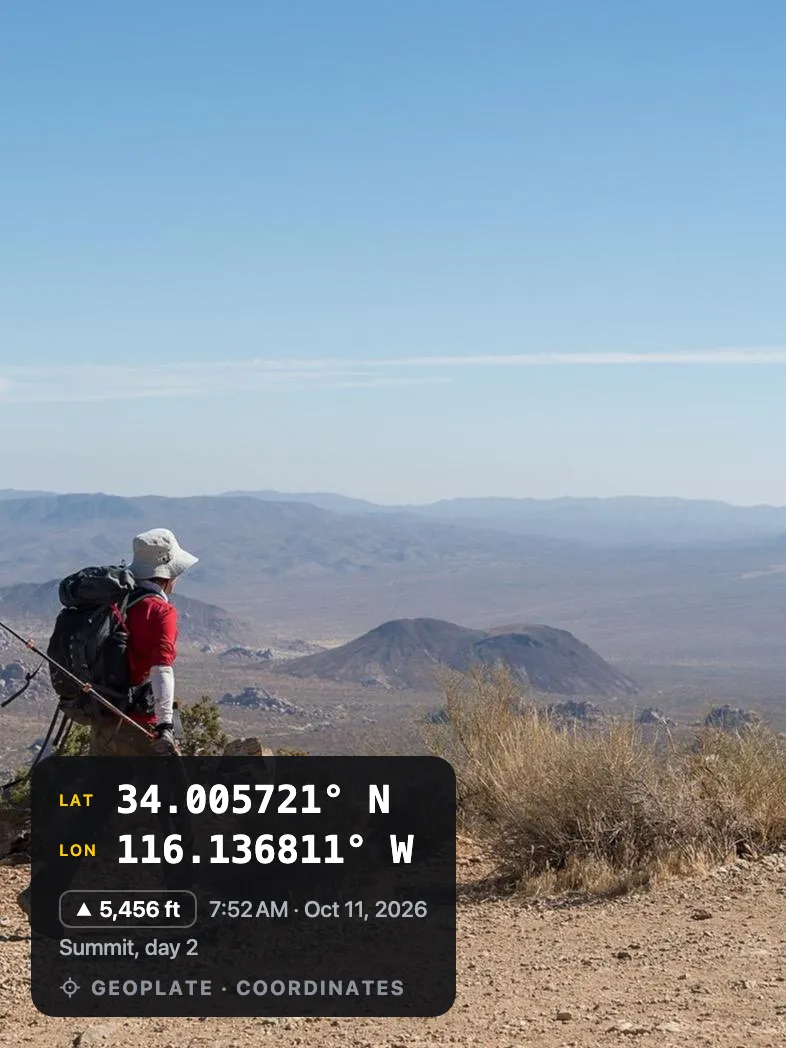
To geotag photos on iPhone, let the Camera use your location in Settings, and every new photo saves the place it was taken. To add or fix a place later, use Adjust in the Photos info panel. To make the place visible on the picture itself, shoot with a GPS map camera like Geoplate.
What geotagging means
A geotag is the place, saved with the photo as GPS coordinates. Photos uses it to put pictures on the map and to find them by city. You don't see it on the picture; it shows only in the info panel.
So "add location to a photo" can mean two things: save the place inside the file, or print the place on the picture where anyone can see it. This guide covers both.
Turn on location for the iPhone camera
- Open Settings, then Privacy & Security, then Location Services.
- Make sure Location Services is on.
- Tap Camera and choose While Using the App.
- Turn on Precise Location, so the place is the building and not just the neighborhood.
From now on, new photos save their place. To check, open a photo you just took and swipe up: there should be a map.
Add or change the place on a photo you already took
- Open the photo in Photos and swipe up, or tap the info button.
- Tap Adjust under the map, or Add Location if there is none.
- Search for the place and pick it.
To fix several photos at once, select them in the library, tap the More button and choose Adjust Location. Either way you change the hidden place; nothing appears on the picture.
Keep the place when you share
When you send a photo from the share sheet, tap Options at the top. The Location switch decides whether the place goes along. Many chat apps and social sites strip it on their own, whatever you choose there.
If the person on the other end needs to see the place, the only sure way is to have it printed on the photo.
Print the place on the photo with Geoplate
A GPS map camera puts the place where anyone can see it. Geoplate can print:
- the street address, found with Apple Maps
- a mini map with a pin, standard or satellite
- coordinates: decimal, degrees and decimal minutes, DMS, UTM or MGRS
- altitude, compass heading and speed
- location accuracy, so you know how close the pin is
- Allow location while using the app. Precise location gives the exact building.
- Check the address on the stamp. If it's wrong, search for the right one, move the pin on the map, or type it in.
- Shoot. The address, coordinates and map are printed into the photo.
Geoplate also saves the same place inside the copy it puts in Photos, so the picture lands on the Photos map too. If you switch the place off on the stamp, the saved copy carries no place at all.
Which way does what
| Way | Place inside the file | Place on the picture | Old photos |
|---|---|---|---|
| Camera with location on | Yes | No | No, new photos only |
| Adjust in Photos | Yes | No | Yes |
| Geoplate camera | Yes, in the saved copy | Address, coordinates, map | New shots |
| Geoplate Old photos | Yes, in the stamped copy | Address and map | Yes, in batches |
Photos from before you turned location on can get a printed place too: see how to timestamp photos you already took.
Common problems
- The place is only roughly right. Precise Location is off for the Camera or for Geoplate. Turn it on in Settings.
- Coordinates but no address. There was no connection. GPS works offline; the address and map need the internet. In Geoplate you can add the address later.
- The address is a building off. GPS drifts indoors and between tall buildings. Check the accuracy field and move the pin.
- A photo from a chat app has no place. The app dropped it. Set it with Adjust in Photos, or in Geoplate's Old photos.
Where to go next
Questions
How do I turn on geotagging for iPhone photos?
Settings, Privacy & Security, Location Services, Camera, then While Using the App. Turn on Precise Location as well.
Can I geotag a photo after taking it?
Yes. Swipe up on the photo in Photos and tap Adjust or Add Location. To print the place on the picture, use Geoplate's Old photos.
Does geotagging work without internet?
Yes, GPS coordinates are saved offline. Street names need a connection to look up, so Geoplate stamps coordinates offline and lets you add the address later.
How do I show the location on the photo itself?
Shoot with a GPS map camera such as Geoplate. It prints the address, coordinates and a mini map into the picture.
Does Geoplate track my location?
No. It reads your location only while the app is open, to put it on the stamp. Your photos stay on your iPhone.