
How to add a timestamp to photos on iPhone
The iPhone camera saves the date inside the file but never prints it on the picture. To make the date visible, type it on with Markup, build a Shortcut that stamps the date taken, or shoot with a timestamp camera app like Geoplate, which prints the date, time and place as you take the photo.
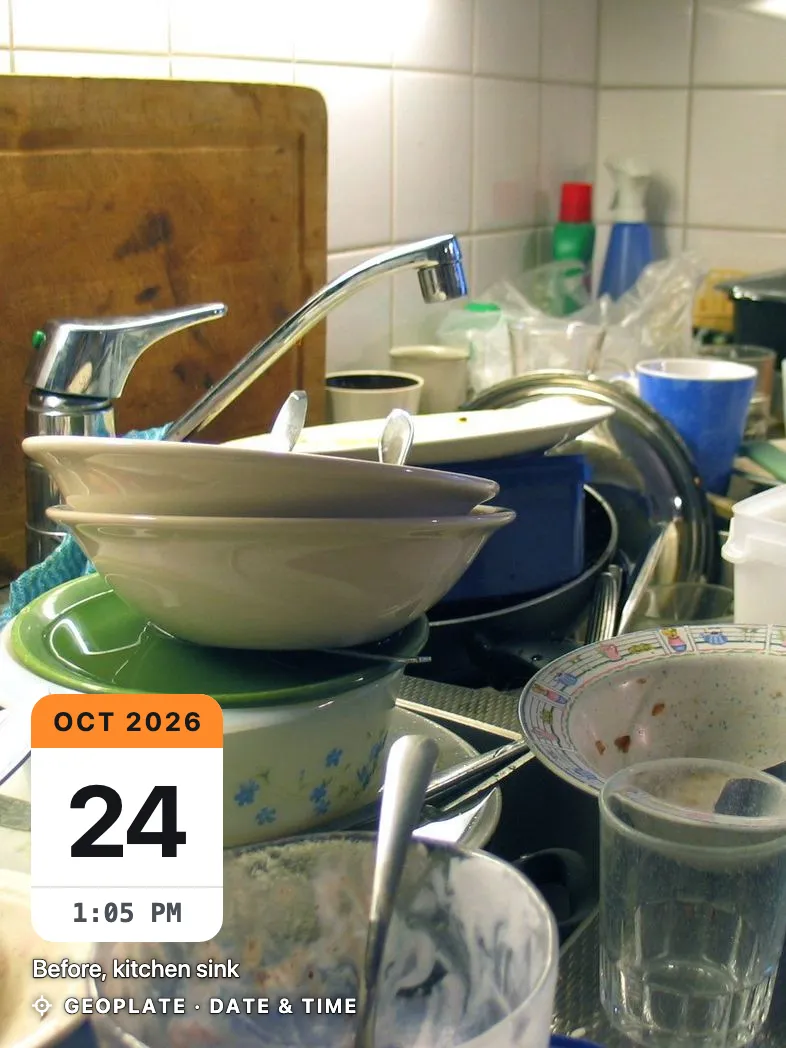
Where the iPhone keeps the date
Every photo on your iPhone already has a date. Open it in Photos and swipe up, or tap the info button. You'll see the day and time it was taken, the camera, and a small map if location was on.
The catch: that date lives inside the file. It isn't on the picture, the person you send it to won't see it unless they go looking, and many chat apps and social sites drop it when the photo is sent.
A timestamp is the same date printed into the image, so it goes wherever the picture goes. Below are three ways to add one, from free and manual to automatic.
Way 1: type the date with Markup
Markup is built into Photos and costs nothing. It works one photo at a time.
- Open the photo in Photos and tap Edit.
- Tap the Markup button (the pen tip).
- Tap the plus button and choose Text.
- Type the date and time, pick a color and size, and drag the text into a corner.
- Tap Done.
Photos keeps the original, so you can revert the edit later. Markup is fine for one or two photos. The date is whatever you type, though, so it's easy to get a day wrong, and with twenty photos you'll be typing for a while.
Way 2: a Shortcut that stamps the date taken
The Shortcuts app can read the date each photo was taken and write it on the image. It's free and handles a batch. A basic version looks like this:
- Select Photos, with Select Multiple turned on.
- Repeat with Each, so the next steps run for every photo.
- Get Details of Images, set to Date Taken.
- Format Date, with a format like Oct 24, 2026 1:05 PM.
- Overlay Text on the photo, using the formatted date.
- Save to Photo Album.
Action names shift a little between iOS versions. If you can't find one, search the actions list for "overlay" or "details".
The result is plain text in one style, and getting the size and position right takes trial and error. There's no address unless you add more actions. If a photo's date changed on the way to your phone, for example through a chat app, the Shortcut may print that date instead of the day it was taken.
Way 3: shoot with a timestamp camera
A timestamp camera prints the stamp when you press the shutter, so there's nothing to type afterwards. In Geoplate the date and time come from your iPhone's clock at that moment, with the time zone. The coordinates come from GPS, and the address from Apple Maps.
- Install Geoplate and allow the camera and location.
- Swipe left or right on the stamp to pick a template. Tap it to choose the fields.
- Shoot. Keep the photo in the app or save it to Photos.
On shots kept in the app you can still change the template, the fields, the title or the place, and drag or resize the stamp. The copy Geoplate saves to Photos carries the same date and place inside the file, so it sorts and maps correctly in your library.
Shooting, stamping and every template are free. The free version saves a limited number of shots to Photos and shows the Geoplate name on the stamp. Geoplate Pro lifts both.
Which way to pick
| Way | Where the date comes from | Place on the photo | Many photos | Cost |
|---|---|---|---|---|
| Markup | You type it | Only if you type it | One at a time | Free, built in |
| Shortcut | Date taken, read from the file | Not without extra actions | Yes, in one run | Free, built in |
| Geoplate camera | iPhone clock at the moment of the shot | Address, coordinates, mini map | Every shot | Free to shoot; Pro for unlimited saves |
| Geoplate Old photos | Date taken, read from the file | The place saved with the photo | A whole batch | Same as above |
A rule of thumb: for a couple of old photos, use Markup. For a pile of old photos and some patience, a Shortcut or Old photos. For photos you haven't taken yet, a stamp camera, so the date is right from the start.
Common problems
- The stamp shows the wrong date. On old photos, the date comes from the file. Pictures saved from a chat app often carry the day you saved them. In Geoplate you can set the date by hand.
- There's no address on the stamp. The address needs a connection. Offline, Geoplate still stamps the date, time and coordinates, and you can add the address later.
- The stamp is hard to read. Try another of the five colors, or a template with a solid background behind the text.
- The stamp covers something important. Drag it to another corner, pick one of six positions, or pinch to make it smaller.
- The date in Photos doesn't match the stamp. That happens with editors that only draw text. Geoplate writes the stamp's date into the copy it saves, so both match.
Where to go next
Questions
Does the iPhone camera have a timestamp option?
No. The built-in Camera saves the date inside the file but can't print it on the photo. You need Markup, a Shortcut or a timestamp camera app.
Can I add a timestamp to a photo I already took?
Yes. Markup and Shortcuts work on any photo in your library. Geoplate's Old photos stamps a whole batch with the date each photo was taken and leaves the originals untouched.
Is there a free way to timestamp iPhone photos?
Markup and Shortcuts are free and built in. Geoplate is free to download, shoot and stamp with every template, with a limited number of free saves to Photos.
Will the timestamp survive WhatsApp or email?
A printed stamp is part of the picture, so it stays wherever the picture goes. The hidden date inside the file is often dropped by chat apps.
Can I timestamp videos?
Geoplate stamps video while you record it, and the clock on the stamp keeps running. Markup and the Shortcut above work on photos only.